Accounts & sync
You don’t need an account to use Papers. Log in when you want your writing kept safe and the same on every device you use.
Without an account
Everything you write is saved in the browser you’re using, on the device you’re using. It’s private, and it works offline. But:
- it isn’t on any of your other devices, or in other browsers on the same device;
- clearing this browser’s site data deletes it;
- a private or incognito window forgets it when you close the window.
Warning
Without an account, Papers can’t bring back writing that was in a browser whose data was cleared. If your writing matters to you, log in.
Logging in
- On a computer: move the mouse and click the Log in icon in the sidebar on the right.
- On a phone: tap the menu button, then Log in at the top of the menu.
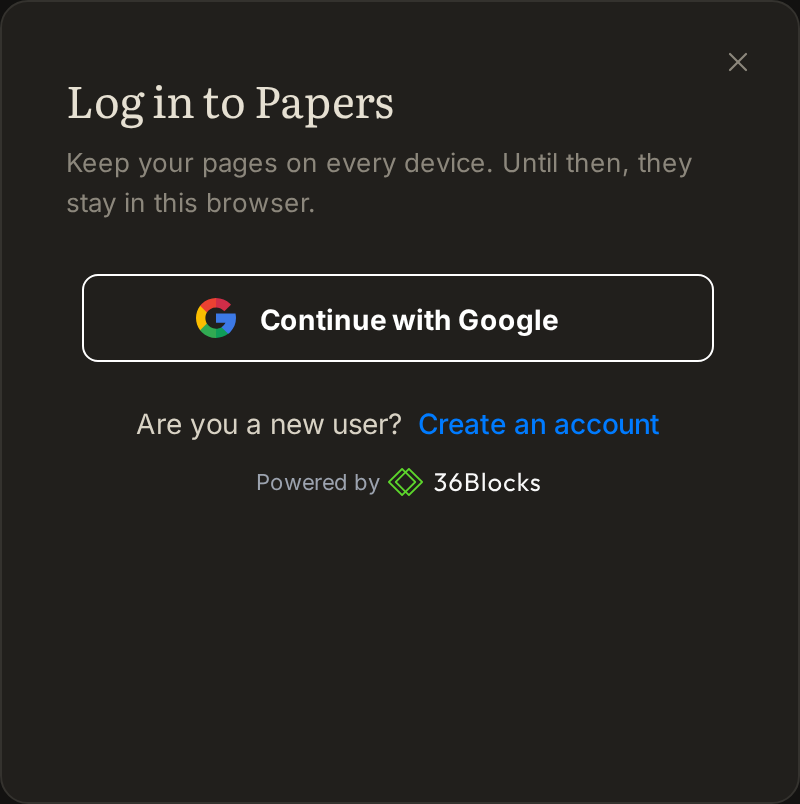
The Log in to Papers dialog shows the ways you can sign in, such as Continue with Google. New to Papers? Choose Create an account in the same dialog.
When you’re done, you return to the page you were writing, exactly where you left off.
Your first login on a device
Everything you’d written on that device before logging in is added to your account. Nothing is replaced or thrown away. If your account already has writing from another device, you’ll see both.
What syncs
Once you’re logged in, these stay the same everywhere you’re logged in:
- your pages,
- your notebooks and journals, including each journal’s rhythm and starting text,
- your settings: typeface, text size, line width and background.
Where you were on each page (cursor and scroll position) belongs to each device and doesn’t sync.
How syncing works
Syncing happens by itself, in the background. There’s no sync button, and you never wait for it.
- Your changes are sent a moment after you stop typing.
- Changes from your other devices arrive about once a minute, and whenever you come back to Papers.
- Your device always keeps its own full copy, so you can keep writing with no connection. When you’re back online, everything catches up.
Editing on two devices
If you change the same page on two devices before either has synced, for example on a plane and on a laptop that’s also offline, the most recent edit wins and replaces the other one. Edits to different pages never affect each other.
Tip
If you switch devices often, give Papers a moment online before you switch, so the next device has your latest words.
If syncing stops
If Papers hasn’t been able to sync for a few minutes, Settings shows a quiet line: Not synced. Will retry. Your writing is safe on this device, and Papers keeps trying on its own. Usually it just means you’re offline.
“Log in again to sync”
Every so often a login runs out and can’t be renewed. Papers doesn’t interrupt you: it switches quietly to logged out, keeps everything on the device, and puts a small gold dot on the Log in icon. Its label reads Log in again to sync. Log in, and syncing picks up where it left off.
Your account
When you’re logged in, a small circle with your initial appears in the right sidebar. Point at it to see the email you’re logged in with. On a phone, tap the circle at the top of the menu.
There’s no way to change your email or delete your account from inside Papers yet.
Logging out
- On a computer: click the Log out icon in the right sidebar.
- On a phone: tap Log out at the top of the menu.
When you log out, Papers syncs anything that hasn’t been sent yet, then removes your account’s writing from this device and starts you on one empty page. Your writing is still in your account; log in again to get it back.
If some changes couldn’t be sent (for example, you’re offline), Papers asks first: Some changes haven’t synced yet. Log out anyway? Choose Cancel to stay logged in until you’re back online. Log out goes ahead, and those changes are lost.
Login problems
- “Sign-ups are paused right now. Please try again later.” Papers isn’t taking new accounts at the moment. You can keep writing without one.
- “Couldn’t log you in. Please try again.” Something went wrong during sign-in. Try again, or try a different sign-in option.
- “Couldn’t load sign-in. Check your connection.” The sign-in options need the internet. Reconnect and choose Try again.