Journals
A journal is a notebook for writing over time: a daily diary, a work log, or a record of learning something new. Each entry is dated for you, and starts with whatever prompts you choose.
Making a journal
- On a computer: open the page list on the left and click New journal, at the bottom.
- On a phone: tap the menu button, then New journal.
The journal opens with the cursor in its name. Name it after what you’re writing about, “Daily journal”, “Work log” or “Horse riding”, and add a description if you like.
Journals are listed with your notebooks, with a pen-and-notebook icon.
Pick a starting point
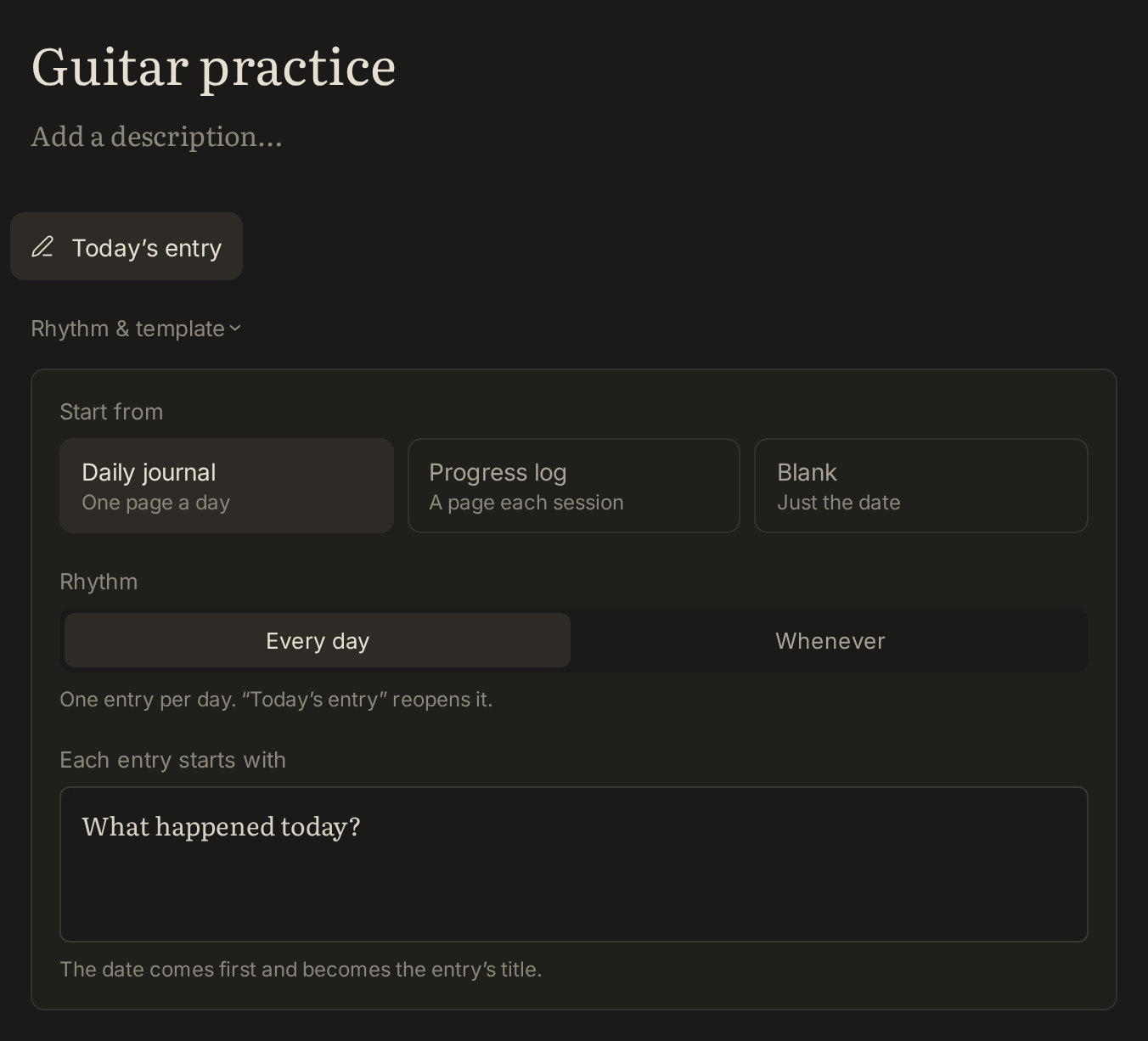
A new journal opens its Rhythm & template panel, with three starting points:
| Starting point | Rhythm | Each entry starts with |
|---|---|---|
| Daily journal | Every day | “What happened today?” |
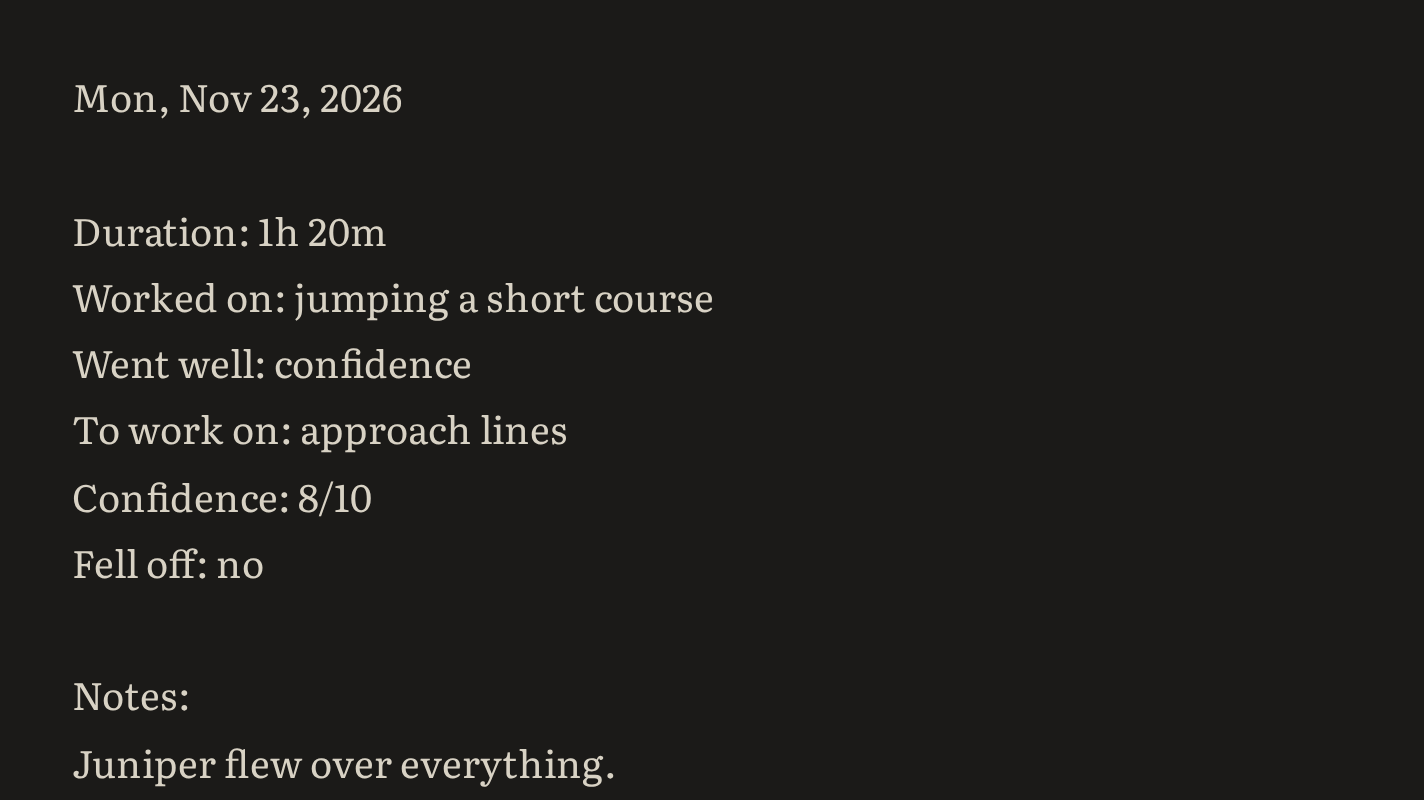
| Progress log | Whenever | Duration:, Worked on:, Went well:, To work on: and Notes: |
| Blank | Every day | Just the date |
Pick one to begin. You can change the rhythm and the starting text at any time, and the starting points stay available until you write your first entry.
Rhythm: every day, or whenever
The rhythm decides what happens when you start writing.
- Every day: one entry per day. Today’s entry opens today’s page, or makes it if you haven’t written today yet. Come back later the same day and you’re back in the same entry. Good for diaries and daily notes.
- Whenever: a fresh entry every time you choose New entry, so you can have several on the same day. Good for logging sessions: practice, workouts, lessons.
What each entry starts with
Every new entry starts with the date on its first line, which makes the date the entry’s title. Under it comes your journal’s starting text, if it has any.
To change the starting text, open the journal, choose Rhythm & template, and edit the box labelled Each entry starts with. It’s plain text: type the prompts you want, one per line. Changing it only affects new entries; ones you’ve already written stay as they are.
The cursor goes straight to the first thing to fill in. With Duration: as your first line, a new entry puts the cursor right after it, ready for “45 min”.
Tip
Prompts written as
Label:do more than remind you. Fill them in consistently and Papers can chart them for you, like your practice time over the last month. See Tracking progress.
Writing an entry
- In the journal: choose Today’s entry (every-day journals) or New entry (whenever journals).
- On a computer: point at the journal in the page list and click the button that appears beside it, a pen for today’s entry or + for a new one.
- On a phone: tap the journal in the menu, then Today’s entry or New entry at the bottom.
An entry is an ordinary page: write as much or as little as you like, in any form. The starting text is a suggestion, so edit it, delete it or ignore it.
Entries you didn’t write in
If you open a new entry and leave without changing anything, Papers removes it, just like an empty page. Your journal only keeps the days you actually wrote.
Reading back
An open journal lists its entries newest first, each titled by its date. Click one to read or continue it.
Once you’ve written a few entries, the journal also shows:
- a calendar of the days you wrote, with your streak, and entries from a month and a year ago. See Looking back.
- charts of anything you track with
Label:lines. See Tracking progress.
A journal keeps its own pages
A journal’s pages are its entries, so pages can’t be moved into a journal, and entries can’t be moved out of one. You can still delete an entry with the bin button, with the usual Undo.
Deleting a journal
At the bottom of an open journal, choose Delete journal and confirm. Your entries are kept as ordinary pages, each still titled with its date, in your main page list.