Getting started
Open Papers and start typing. This page shows where everything is and the few things worth knowing on day one.
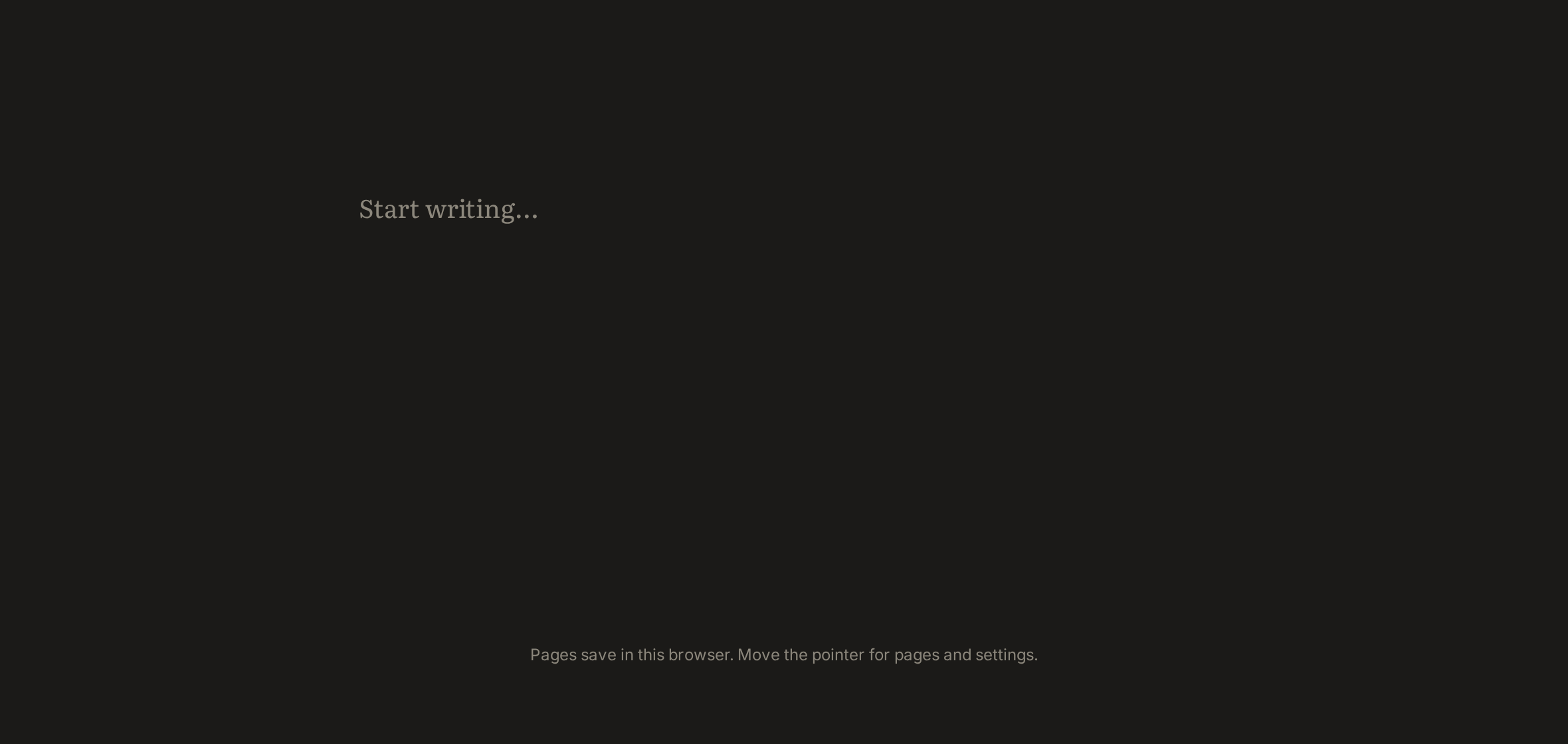
Start writing
When Papers opens, the cursor is already on the page. Type, and that’s it: there’s no account to create, no button to press, and nothing to save. Papers saves as you write.
Your first line becomes the page’s title, so a good first line helps you find the page again later.
Finding the controls
Papers hides everything except your words while you write. The controls are there when you want them.
On a computer
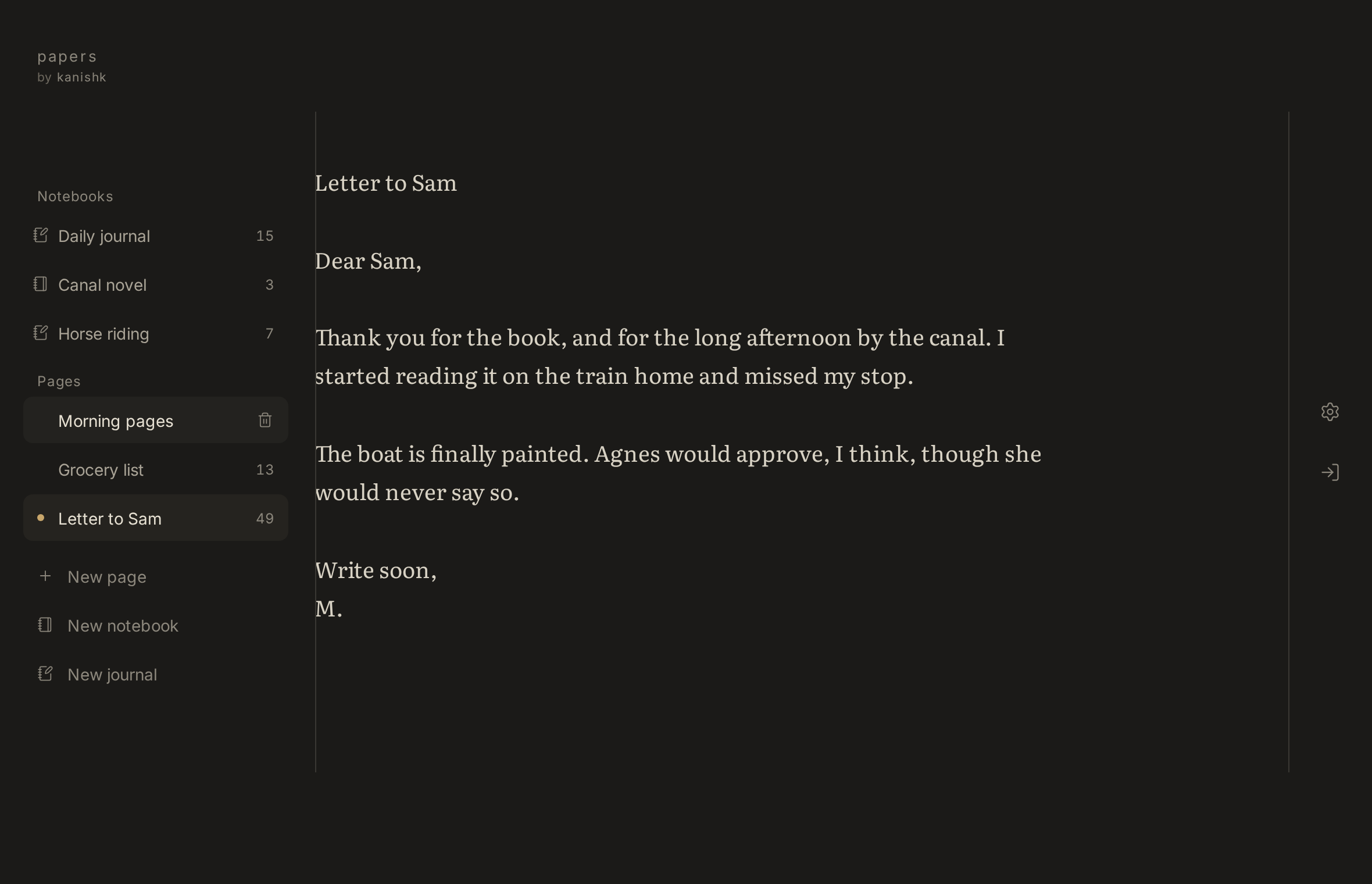
Move the mouse and two thin sidebars fade in, one on each side of the page:
- Left: your pages, notebooks and journals. Point at it to open the full list.
- Right: Settings (how your text looks), and Log in if you want your writing on more than one device.
Start typing, or leave the mouse still for about two seconds, and they fade away again.
Prefer the keyboard? Press Tab to move into the sidebars, and Esc to step back to your page.
On a phone
A round button sits at the bottom right of the screen.
- Tap it to open the menu, which holds your pages, notebooks, journals and settings.
- Press and hold it to start a new page without closing the keyboard.
While you type, the button fades back so it doesn’t distract you. More in Papers on a phone.
On a tablet
Tap near the left or right edge of the screen to show the sidebars. They hide again when you go back to writing.
Four things worth knowing
- The first line is the title. It names the page in your list, and in your browser tab.
- Saving is automatic. There’s no save button and no “saved” message. Papers saves about half a second after you stop typing, and again when you close the tab.
- Without an account, your writing lives in this browser. It’s private and works offline, but it stays on this device, in this browser.
- Esc always brings you back. It closes whatever is open and returns you to your page.
Warning
If you’re not logged in, clearing your browser’s site data, or writing in a private window, deletes your pages. Log in to keep a copy safe and to reach your writing on other devices.