Papers on a phone
On a phone, everything lives behind one round button, so the screen is all yours for writing.
The menu button
The round button sits at the bottom right of the screen.
- Tap to open the menu. The keyboard drops so the menu has room.
- Press and hold (about half a second) to start a new page. The keyboard stays up, so you can keep writing.
While you’re typing, the button fades back. When the keyboard is open, it moves up to sit just above it.
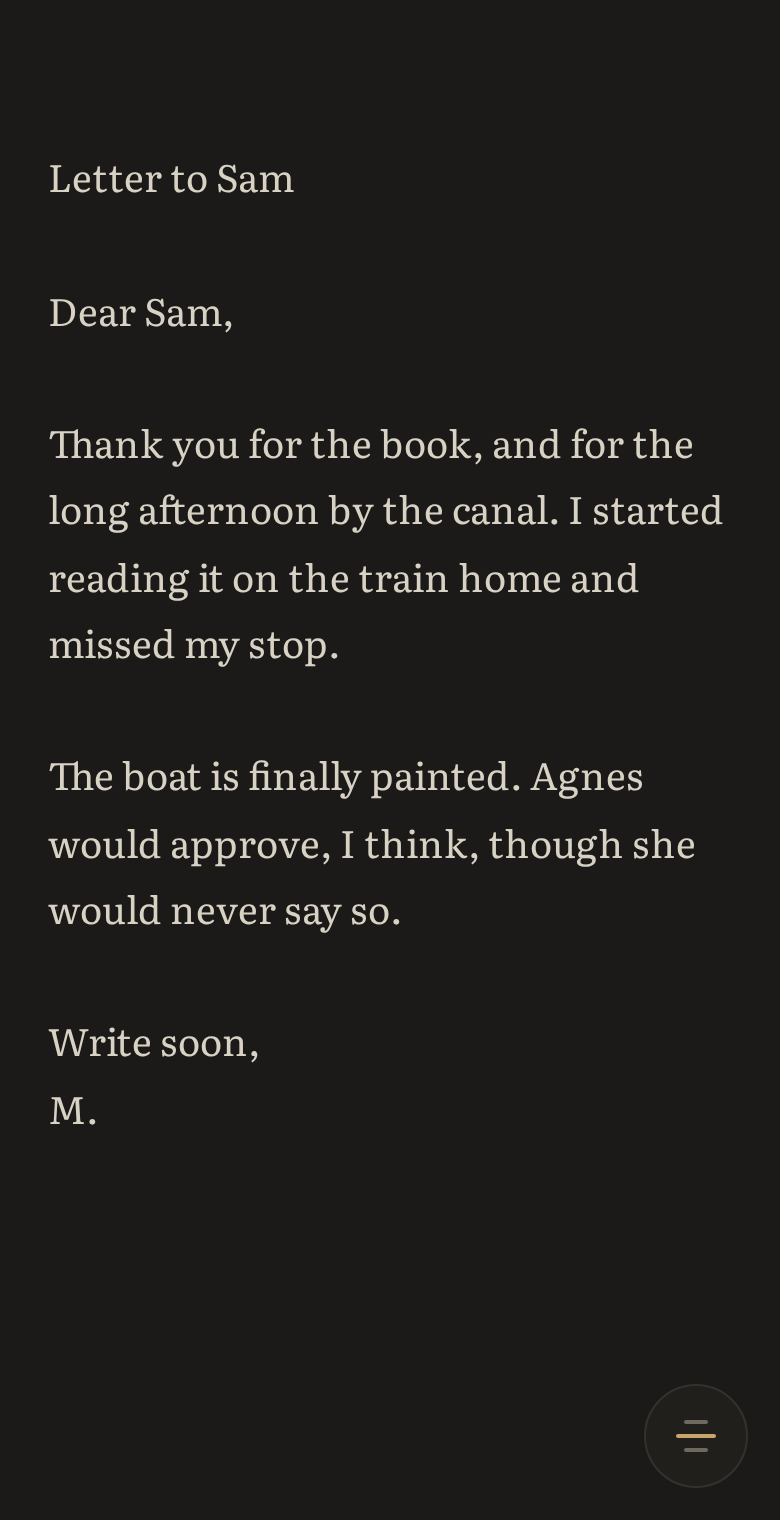
The menu
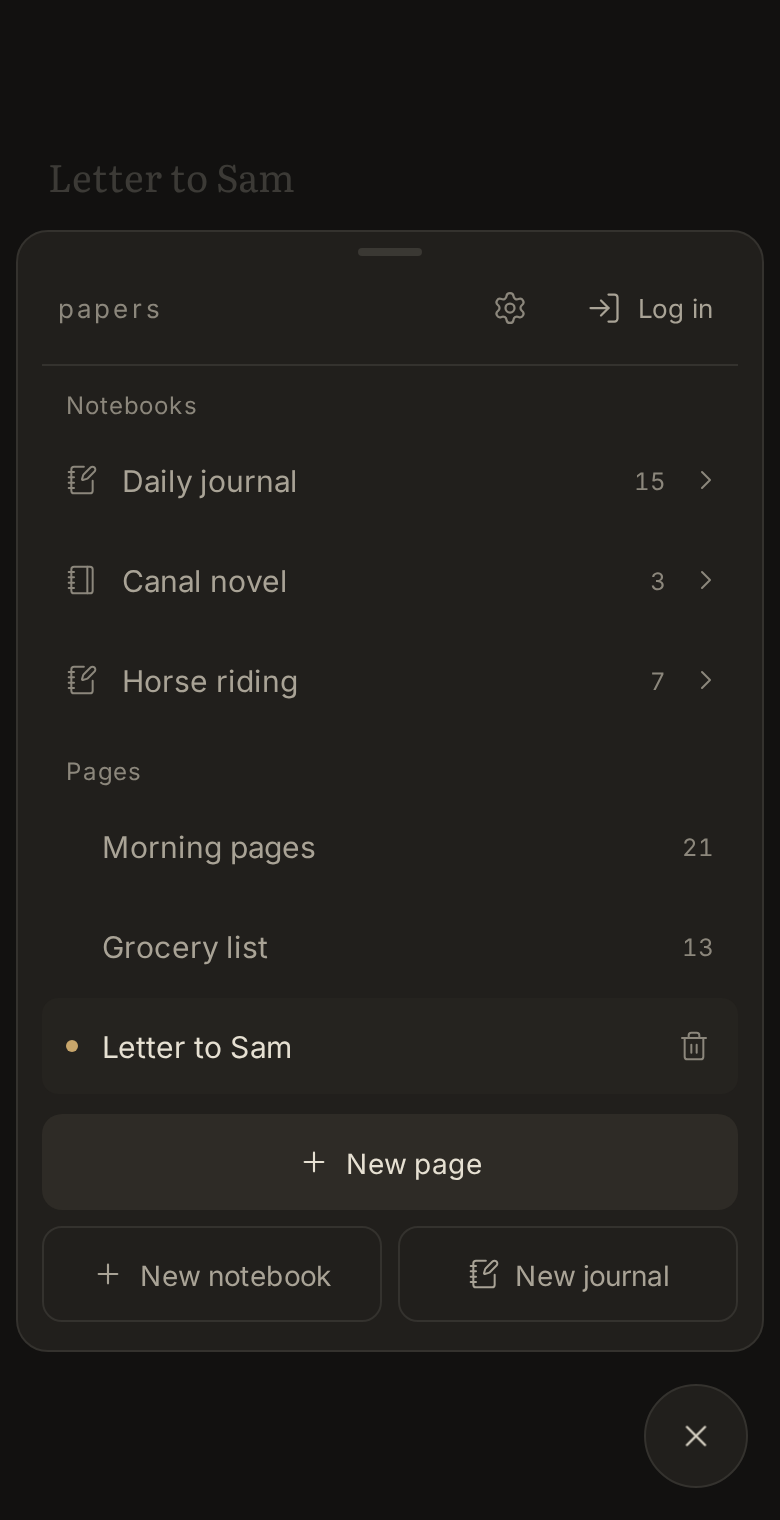
The menu has everything that the sidebars have on a computer:
- At the top: the gear for Settings, your account circle if you’re logged in, and Log in or Log out.
- Notebooks, including journals, each with its page count. Tap one to see its pages.
- Pages that aren’t in a notebook. Tap one to open it.
- At the bottom: New page, New notebook and New journal.
To close the menu, tap the button again, tap outside the menu, or swipe the top of the menu down.
Notebooks and journals in the menu
Tap a notebook to see its pages in the menu. From there:
- New page here writes a new page in it.
- Add pages moves pages in from elsewhere.
- Edit opens the full notebook, to change its name and description.
- The back arrow returns to the main menu.
Tap a journal to see its entries, newest first, and Today’s entry or New entry at the bottom. Use Edit to open the full journal, with its calendar, charts and Rhythm & template.
Deleting on a phone
There’s no pointing on a touch screen, so the bin icon only appears on the page you’re currently on. To delete a page, open it first, then open the menu and tap the bin beside it. Undo appears for about six seconds.
Landscape and tablets
Phones keep the menu button when turned sideways.
Tablets get the sidebars, as on a computer. Tap near the left or right edge of the screen to show them, and tap the left sidebar to open your page list. They hide again when you go back to writing.
Add Papers to your home screen
You can put Papers on your home screen, where it opens full screen like any other app, and works offline. See Install & offline.