Pages
Each piece of writing is a page. Here’s how to make them, move between them, and remove the ones you don’t need.
Your page list
On a computer, move the mouse and point at the thin sidebar on the left. It opens into a list of your pages, each with its title and word count. The page you’re on is marked with a small dot. When the sidebar is closed, each page shows as a short line, and the longer gold line is the page you’re on.
On a phone, tap the round button at the bottom right. Your pages are listed in the menu.
Pages are listed in the order you made them, with the newest at the bottom. Switching between pages doesn’t change the order.
Pages that belong to a notebook or a journal are listed inside it, not in the main list.
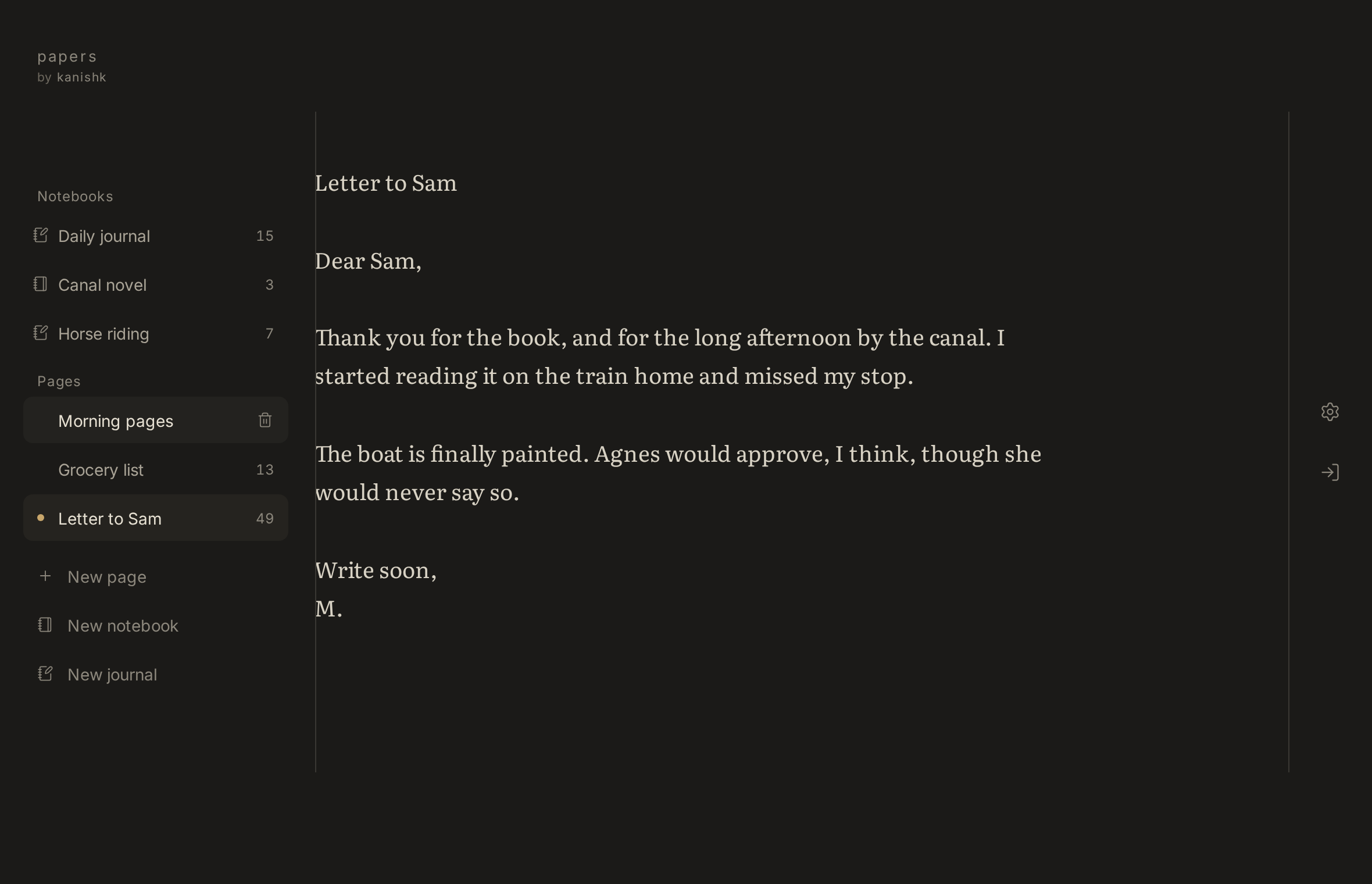
Making a new page
- On a computer: click New page at the bottom of the page list, or the + button under the short lines when the sidebar is closed.
- On a phone: tap the menu button, then New page. Or press and hold the menu button: a new page opens and the keyboard stays up, so you can keep typing.
The new page opens straight away, with the cursor ready.
Switching pages
Click or tap a page in the list. You land exactly where you left off on that page, with the cursor and scroll position as you left them.
Empty pages tidy themselves up
If you make a new page and leave it without typing anything, Papers removes it for you, so your list doesn’t fill up with empty Untitled pages. Your only page is never removed, even if it’s empty.
Deleting a page
- On a computer: point at the page in the list. A bin icon replaces its word count; click it.
- On a phone: open the menu. The bin icon is on the page you’re currently on. To delete another page, open it first.
A message, Page deleted, appears at the bottom of the screen with an Undo button. You have about six seconds to change your mind. If you delete the page you’re on, Papers moves you to the page above it.
Your last page
You always have at least one page, so the last page can’t be deleted. Deleting it clears its text instead, and the message says Page cleared, with the same Undo.
Note
If you’re logged in, deleting a page deletes it on all your devices. Papers doesn’t keep a copy of the text of deleted pages.
Downloading a page
Open Settings and choose Download this page as .txt. You get a plain-text file of the page you’re on, named after its title, which opens in any text editor.
There’s no way to download all your pages at once yet.
Renaming a page
A page’s title is its first line. Change the first line, and the name changes everywhere. See Writing.